


How to Read a Digital Electric Meter: A Comprehensive Guide
Introduction
Digital electric meters have replaced traditional analog meters in many households and businesses due to their accuracy, ease of use, and ability to provide real-time energy consumption data. For Londian Company’s customers, understanding how to read a digital electric meter is essential for monitoring electricity usage, verifying bills, and optimizing energy efficiency.
This guide will explain:
- The different types of digital electric meters
- Step-by-step instructions on how to read them
- Common display codes and their meanings
- Troubleshooting tips
By the end, you’ll be able to confidently interpret your meter readings and manage your energy consumption effectively.
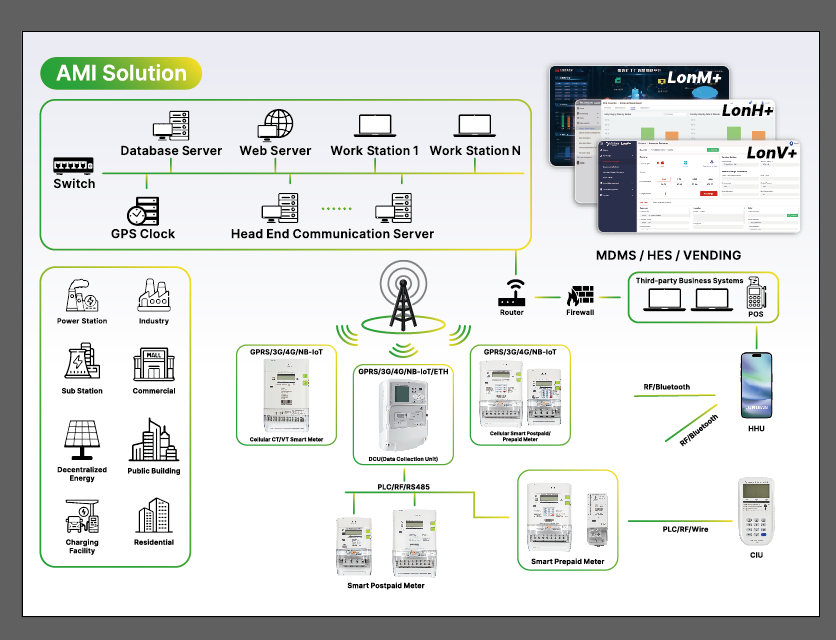
Types of Digital Electric Meters
Before reading your meter, it’s important to identify which type you have. The most common digital electric meters include:
- Single-Rate Digital Meters – Display total electricity usage in kilowatt-hours (kWh).
- Two-Rate (Dual-Rate) Digital Meters – Record energy consumption during peak and off-peak hours separately.
- العدادات الذكية – Transmit data automatically to the utility company and often have interactive displays.
- Prepayment Meters – Require topping up credit and show remaining balance.
Each type has a slightly different display method, but the core reading process remains similar.
How to Read a Digital Electric Meter
Step 1: Locate Your Meter
Digital electric meters are typically installed near the main electrical panel, in a utility room, or outside the building in a meter box.
Step 2: Identify the Display
Digital meters cycle through different screens showing:
- Total kWh consumption (the most important figure)
- Time and date (for smart meters)
- Peak/off-peak rates (for dual-rate meters)
- Error codes or alerts
Step 3: Record the Reading
- Wait for the display to cycle – Most meters auto-scroll every few seconds.
- Note the primary kWh reading – This is usually labeled as “kWh” or “Total.”
- For two-rate meters, check both “Rate 1” (peak) and “Rate 2” (off-peak) readings.
- For prepayment meters, check the remaining credit balance.
Step 4: Submit the Reading (If Required)
Some utility companies require manual submission of meter readings. You can usually do this via:
- Online customer portals
- Mobile apps
- Phone calls
Understanding Digital Meter Display Codes
Digital meters may show additional codes or symbols:
| Code | Meaning |
|---|---|
| IMP kWh | Imported energy (consumption) |
| EXP kWh | Exported energy (for solar users) |
| CLS | Current load (real-time usage) |
| ERR | Error detected (consult utility provider) |
| FLASH | Remote communication in progress (smart meters) |
If you encounter an unfamiliar code, refer to your meter’s manual or contact Londian Company for assistance.
Common Issues and Troubleshooting
- Blank Screen – Check if the meter has power. If it remains blank, report it to your utility provider.
- Frozen Display – Try pressing a button (if available) or wait for it to reset.
- Incorrect Readings – Compare with previous bills. If discrepancies persist, request a meter test.
- Smart Meter Not Transmitting – Ensure it’s connected to the network; reset if necessary.
Why Accurate Meter Reading Matters
- Avoid estimated bills – Manual readings ensure you’re billed for actual usage.
- Detect energy waste – Unusual spikes may indicate faulty appliances.
- Support renewable energy monitoring – Track solar or wind power contributions.
خاتمة
Reading a digital electric meter is simple once you understand the display format. Whether you have a single-rate, dual-rate, smart, or prepayment meter, knowing how to check your consumption empowers you to manage electricity costs efficiently.
For further assistance, Londian Company’s customer support team is available to help with meter-related queries.